Content approvals add a review step to the CMS. Contributors create and edit content, then submit it for review. Approvers check the changes and publish them. This means content can't go live without a second person signing it off, and every step is recorded for auditing.
Content approvals cover Pages, Modals, Blog Posts and Translations.
Before you start
Content approvals are controlled by role capabilities. Each operator's role decides what they can do with content:
- Content Contributor (Approval Flow) – can create and edit content and submit it for review, but can't publish it
- Content Approver (Approval Flow) – can review, publish and unpublish content, and promote new versions
You can check or change the capabilities assigned to each role under Operations > Manage operators > Manage operator roles.
Operators using content approvals should hold only one of these two capabilities. An operator who also has Content Editor, Site Editor or Admin access can publish without approval.
If content approvals aren't switched on for your platform, contact your Customer Success Manager.
Submit content for review
- Log in to the admin using an operator account with the Content Contributor (Approval Flow) capability.
- Go to the Content tab and create a new item, or open an existing draft. New items always start in Draft.
- Add or update your content.
- Click the Status dropdown. As a Content Contributor, you can only choose Draft or Pending Review.
- Select Pending Review, then click Save.
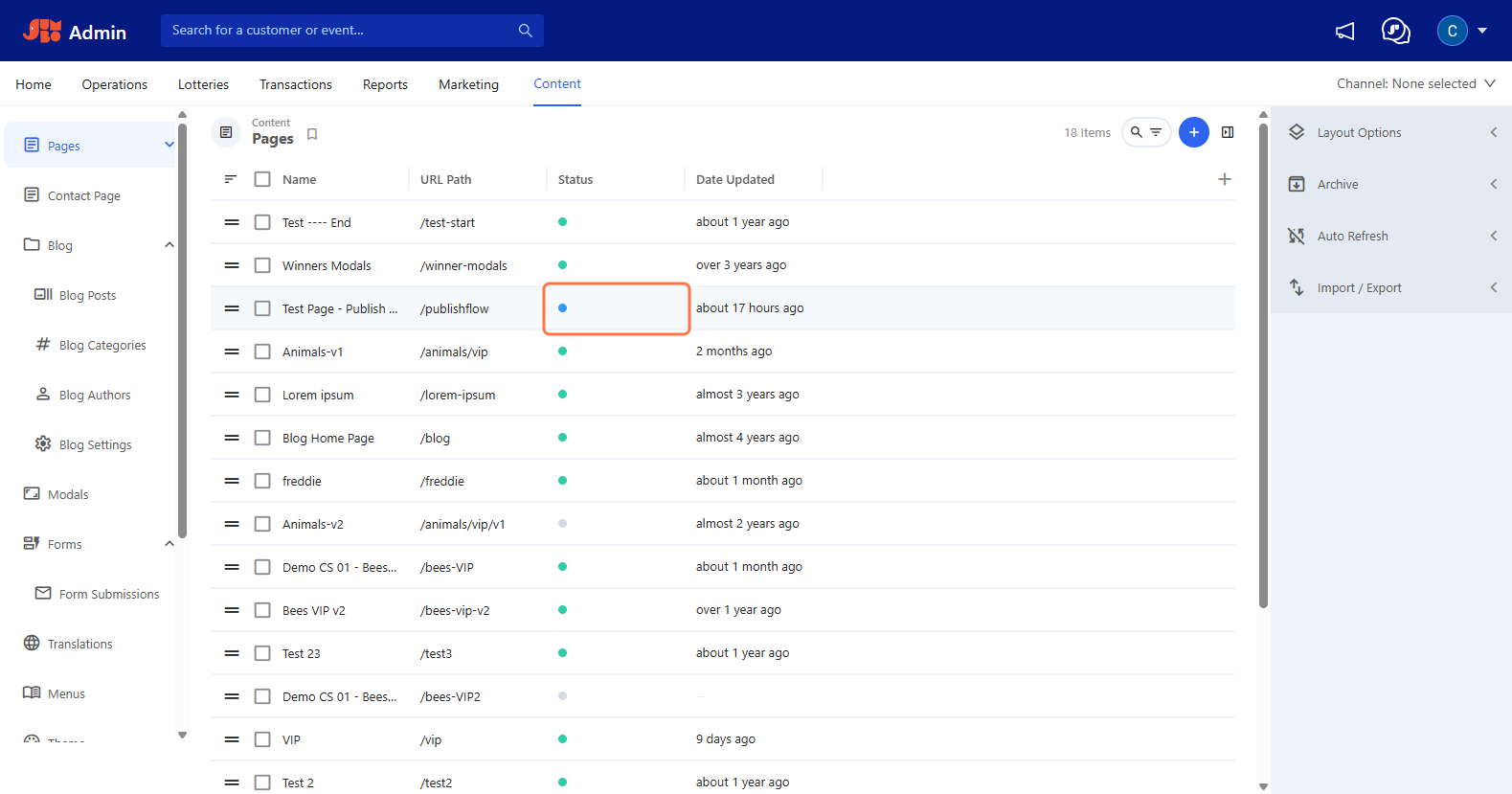
The status shows in blue. If you need to make more changes, set the status back to Draft, make your edits, then submit it again.
- Check that you're working on the Main version. Only the main version can be published. Other versions go live by being promoted (see Update published content).
Review and publish content
- Log in to the admin using an operator account with the Content Approver (Approval Flow) capability.
- Go to Operations > Content Approvals. Every item waiting for review is listed here.
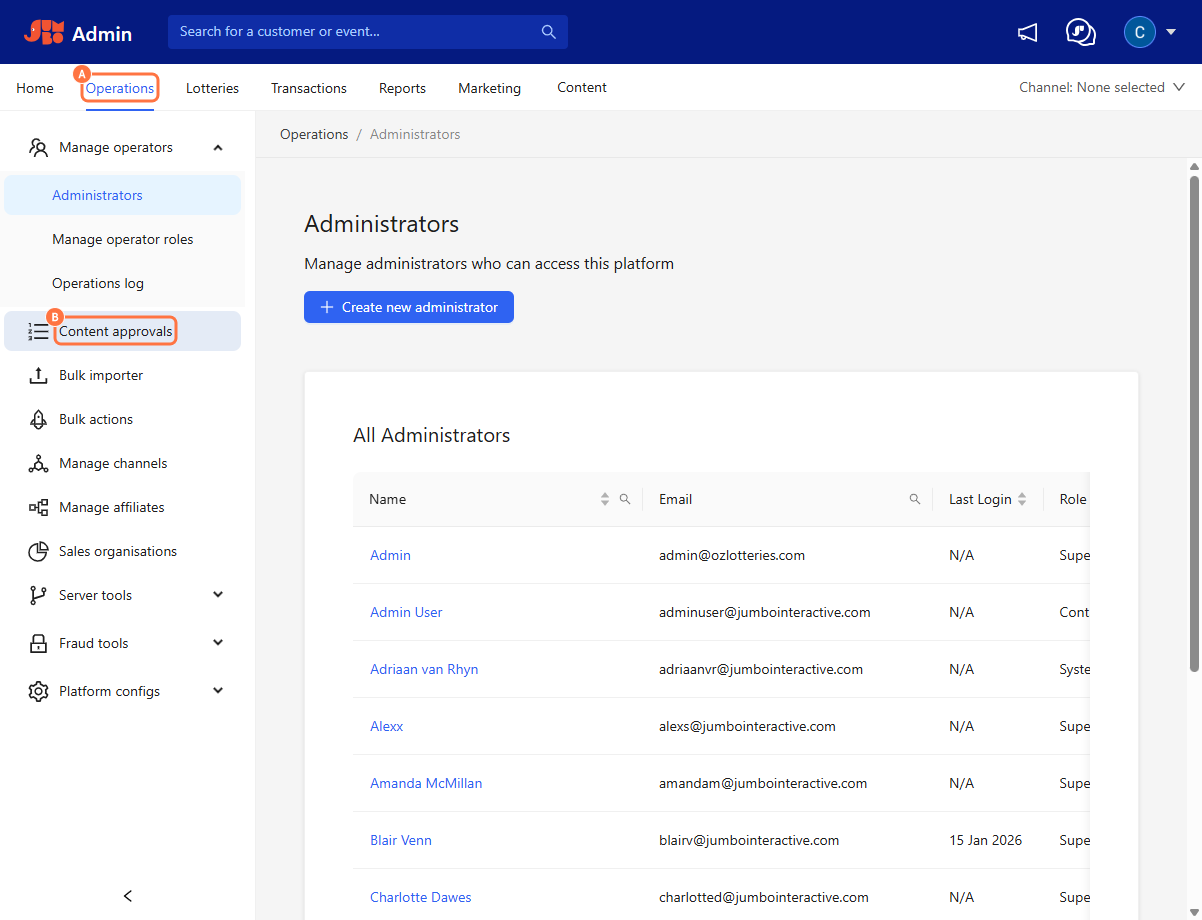
- Click an item name to open it. From here you can:
- open Timeline to see the item's history
- open the content itself using the link at the bottom right of the window
- To see exactly what's changed, click Comparison. This loads the differences from the previous version.
- Approve or reject the change:
- To approve: set the Status to Published and click Save. The item shows in green in the list and is now live on your site.
- To reject: set the Status back to Draft and click Save. No reason is recorded, so let the contributor know what needs changing by email or chat.
Update published content
Changes to published content can be made in a new version. The new version stays in Draft or Pending Review until it's promoted to main. It can't be published directly.
- Log in as a Content Contributor and create a new version of the published item.
- Make your changes, set the status to Pending Review, and save.
- Log in as a Content Approver and open the item.
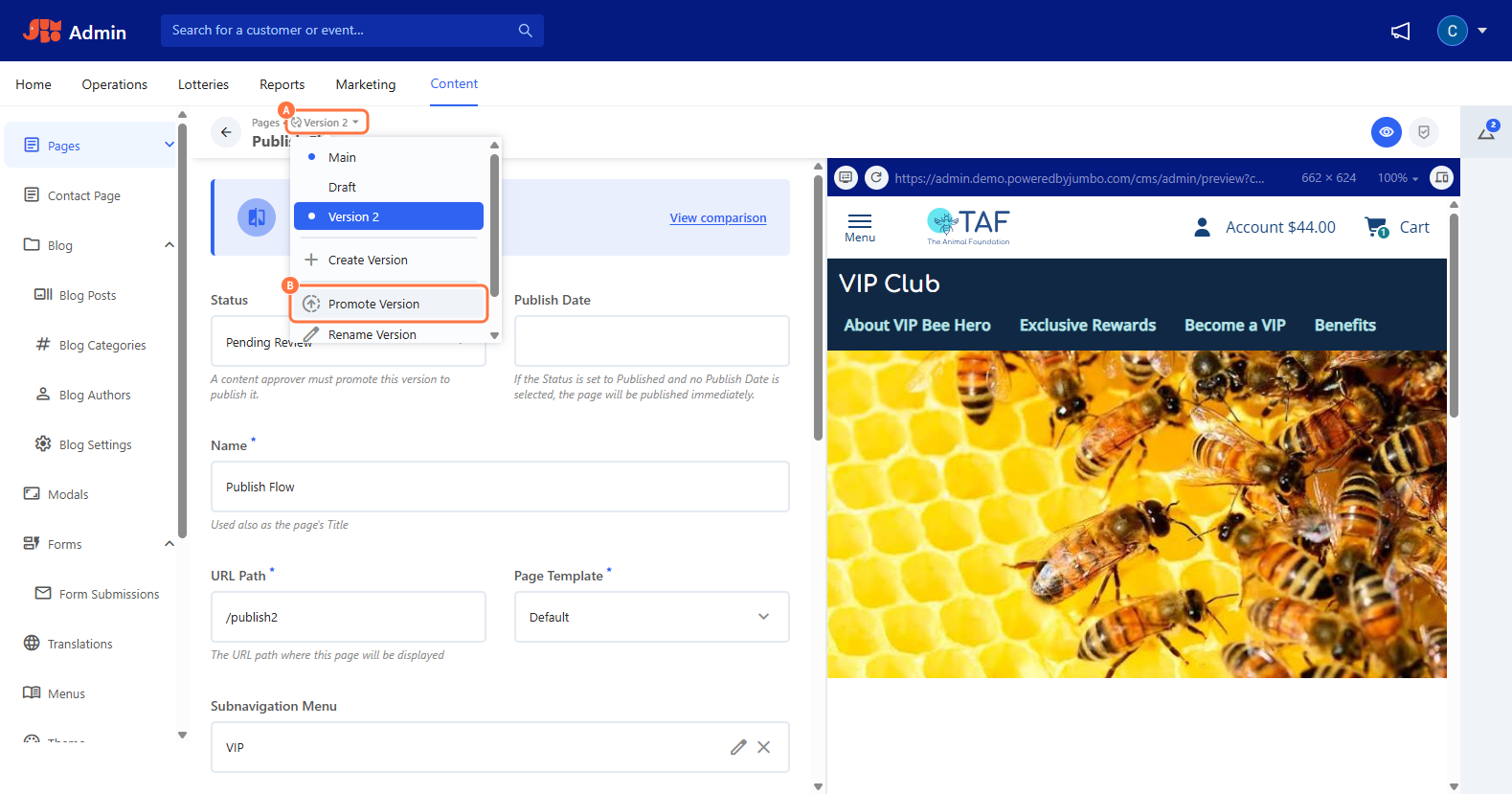
- Click Promote Version to see the changes that will go live.
- To see only what's changed, select Show Differences Only.
- Click Apply to promote the version to main.
Check who did what
- Revisions tab – on any item, this shows everyone involved in each version, from creation to publishing.
- Audit history – go to Operations > Content Approvals and select Audit History. Select Snapshot, then use the > arrows at the top left to step through each change.
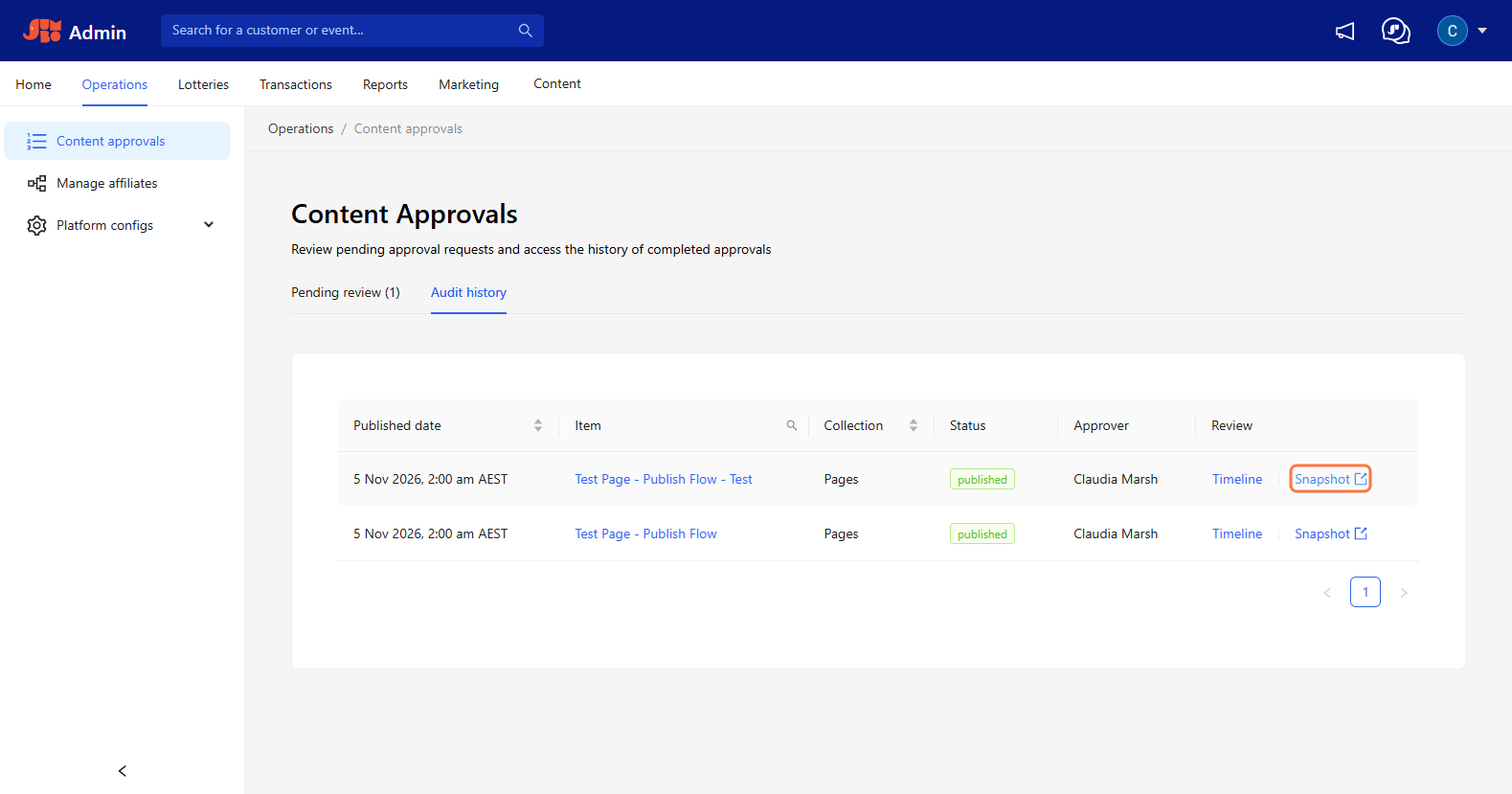
Snapshots are available for Pages, Modals and Blog Posts. Changes to Translations are tracked in the revision history.
Good to know
- Contributors can't see every status. Published and Archived are hidden from Content Contributors. This is expected.
- Approvers can unpublish and archive content. Only an Admin can delete content.
- Approvers can't edit an item that's pending review. To make changes, set it back to Draft first.