Prerequisites
- Access to JLP Admin
- Relevant role capabilities:
- Lottery view
- Draw View
- Generate draw winner
1. Click on Lotteries

2. Navigate to the Draws requiring action table

3. Click the relevant draw number

4. Click on End of draw tools

5. Click on New draw sequence

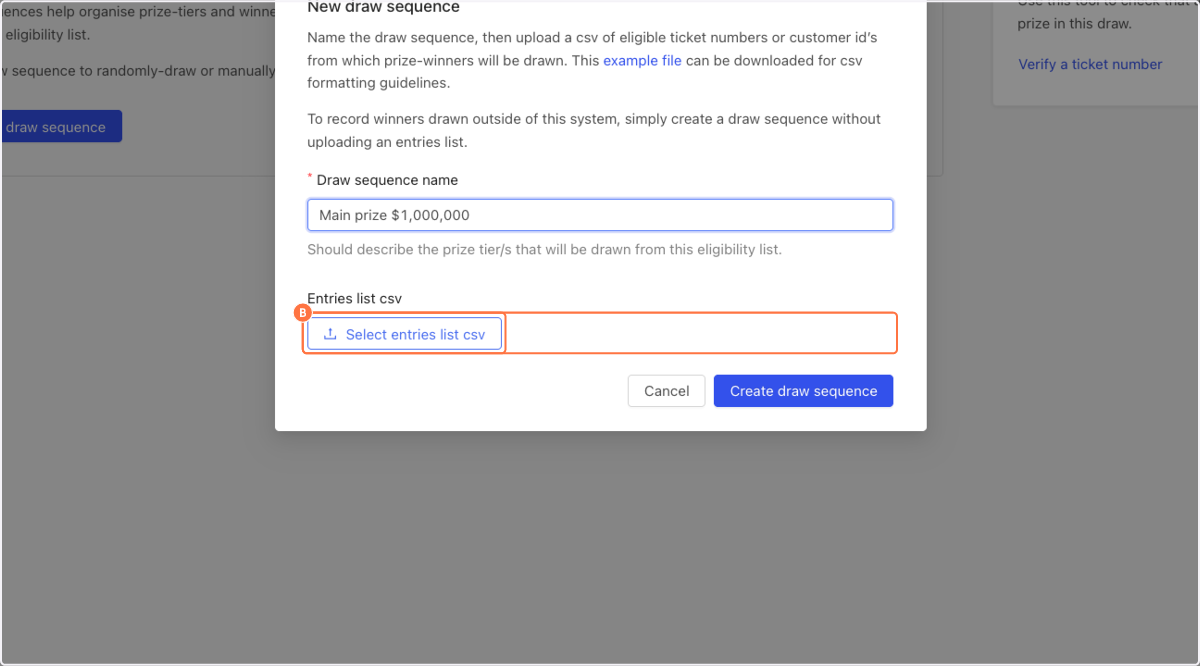
6. Enter the Draw sequence name

7. Upload the entries list in a CSV format
The entries list requires two headers:
- ticket_no (required)
- customer_encoded_id (optional)
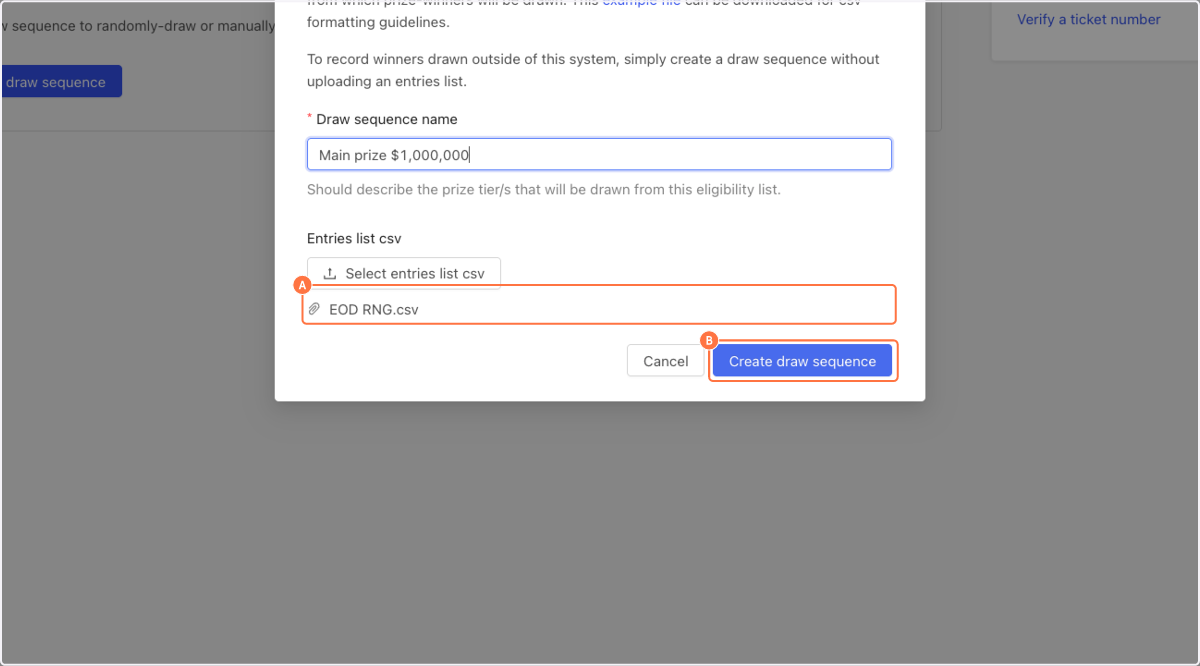
8. Verify the correct entries list was uploaded and click on Create draw sequence
9. Click on Add prize draw

10. Select the Prize type

11. Select Main prize

12. Enter the Prize name

13. Click on Add this prize draw

14. Click on Draw 1 winner

15. Click on View purchase report
A ticket number has been draw from the entries list. Click on View purchase report to validate the drawn ticket is valid.

16. View the details of the drawn ticket
The winning ticket search will contain relevant details needed to validate it is a valid entry:
- Customer details
- Whether ticket was purchased via a recurring purchase
- Ticket type (number of tickets)
- Ticket ID
- Price
- Order Date
- Ticket Status
- Order ID
- Transaction ID (used to verify the transaction is no currently disputed)
- The ticket range of the associated ticket book

17. Print the winning ticket record or go back to end of draw tools
If the ticket is valid, you can print the winning ticket information

18. Click on Back to End of Draw Tools

19. Select checkbox next to the ticket

20. Approve or reject the drawn ticket as being the main prize winner
Proceed to step 25 if the ticket is eligible and can be approved

Rejecting a drawn ticket
21. Click on Reject selected

22. Enter a Reason for rejecting

23. Click on Reject results

24. Click on the rejected ticket to view why the ticket was rejected

Approving a drawn ticket
25. Click on Approve selected

26. Click on Entries list fie details
A file checksum is a unique "digital fingerprint" (a short alphanumeric string) generated by running cryptographic algorithms (like SHA-256 or MD5) on a file. It is used to verify file integrity to ensure the file is not corrupted, altered, or tampered with by comparing the generated checksum against a trusted source value.
Follow the linked instructions in order to complete file validation, otherwise proceed to step 27

27. Click on Approve results

28. The drawn ticket has been approved

29. Click on Publish this winner

30. Enter in the winner's information and click publish record

31. Click on Draw details

32. The end of draw process is complete when the draw status is the Emailed status
