Self-exclusion stops a supporter from logging in on your website or apps. The account stays active, not deactivated or archived, so the exclusion record is kept. Only an operator can lift a self-exclusion. Supporters can't lift it themselves.
Self-exclusion needs to be turned on for your site first. See Set up self-exclusion.
Self-exclude a supporter in the admin
- Log in with an operator account that has the Customer self-exclude capability.
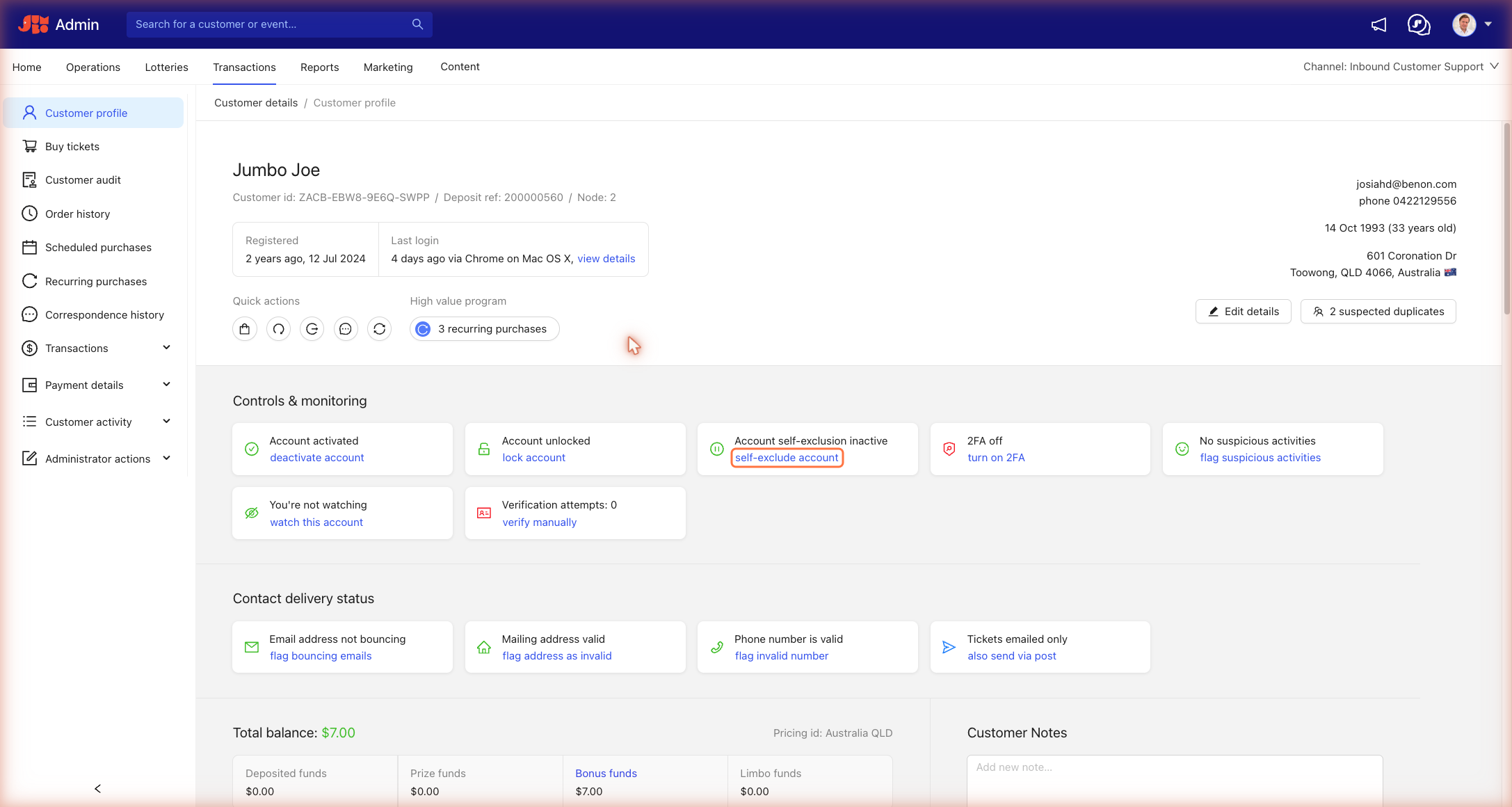
- Search for the supporter and open their profile.
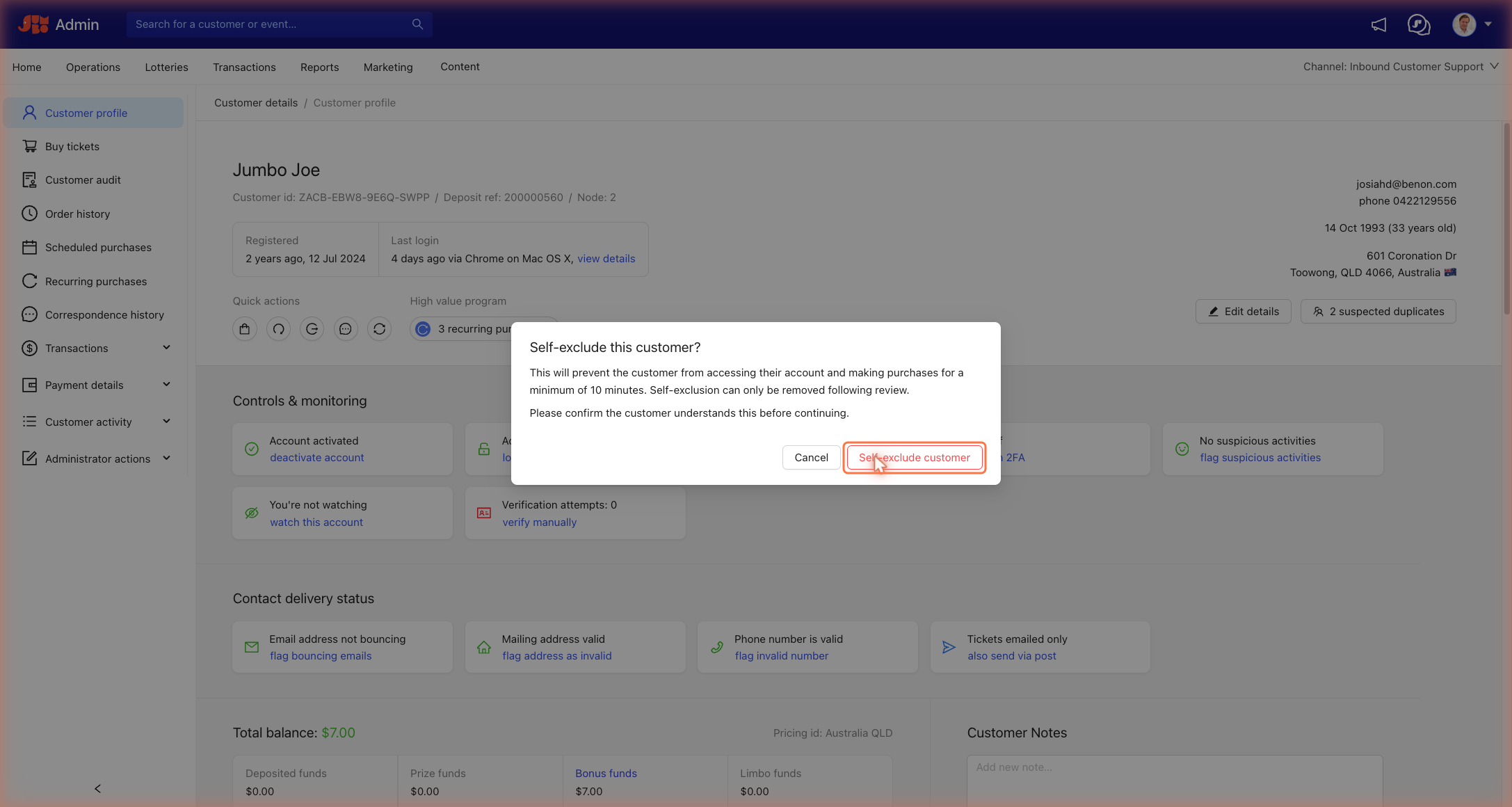
- Click self-exclude account. A window opens showing the minimum period, with a note that the action can't easily be undone.
- Click Self-exclude customer to confirm. You'll see the message "Customer has been self-excluded."
If your operator role doesn't have the Customer self-exclude capability, the button is greyed out and shows Unavailable for your operator role.
How supporters self-exclude
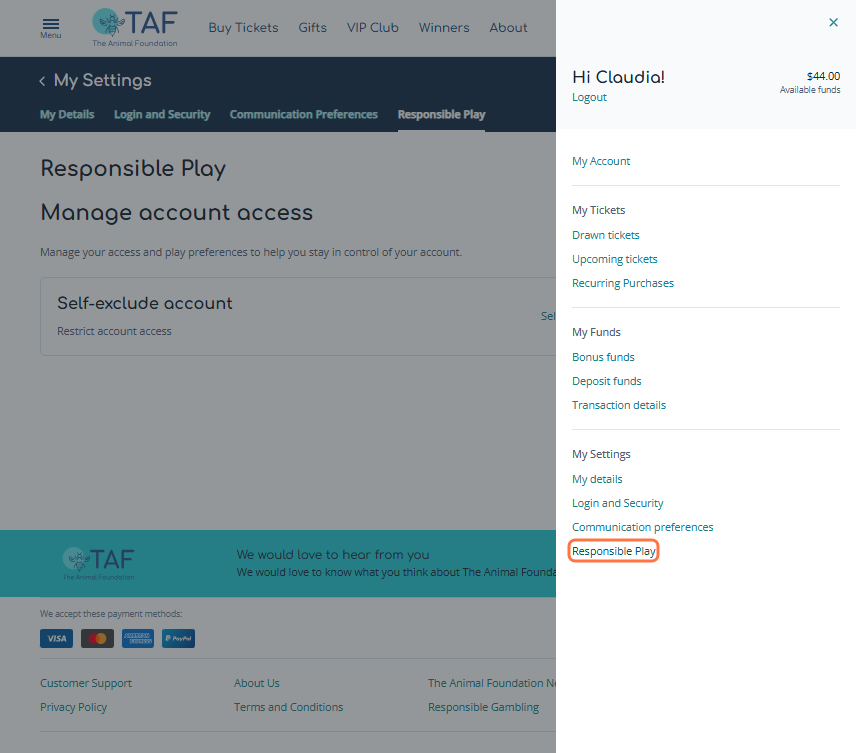
Supporters can self-exclude themselves by going to My Account > Responsible Play. In the apps, Responsible Play is at the bottom of the My Account screen.
What happens next
As soon as a self-exclusion is applied:
- the supporter is logged out on every device and can't deposit or check out
- all recurring purchases are cancelled
- any active tickets that can be cancelled automatically are cancelled
- the supporter is unsubscribed from all non transactional communications
- their details are added to the banned list, so they can't create a new account
- all trusted devices are removed from the account
- the supporter is sent a Self-Exclusion email, if it's turned on
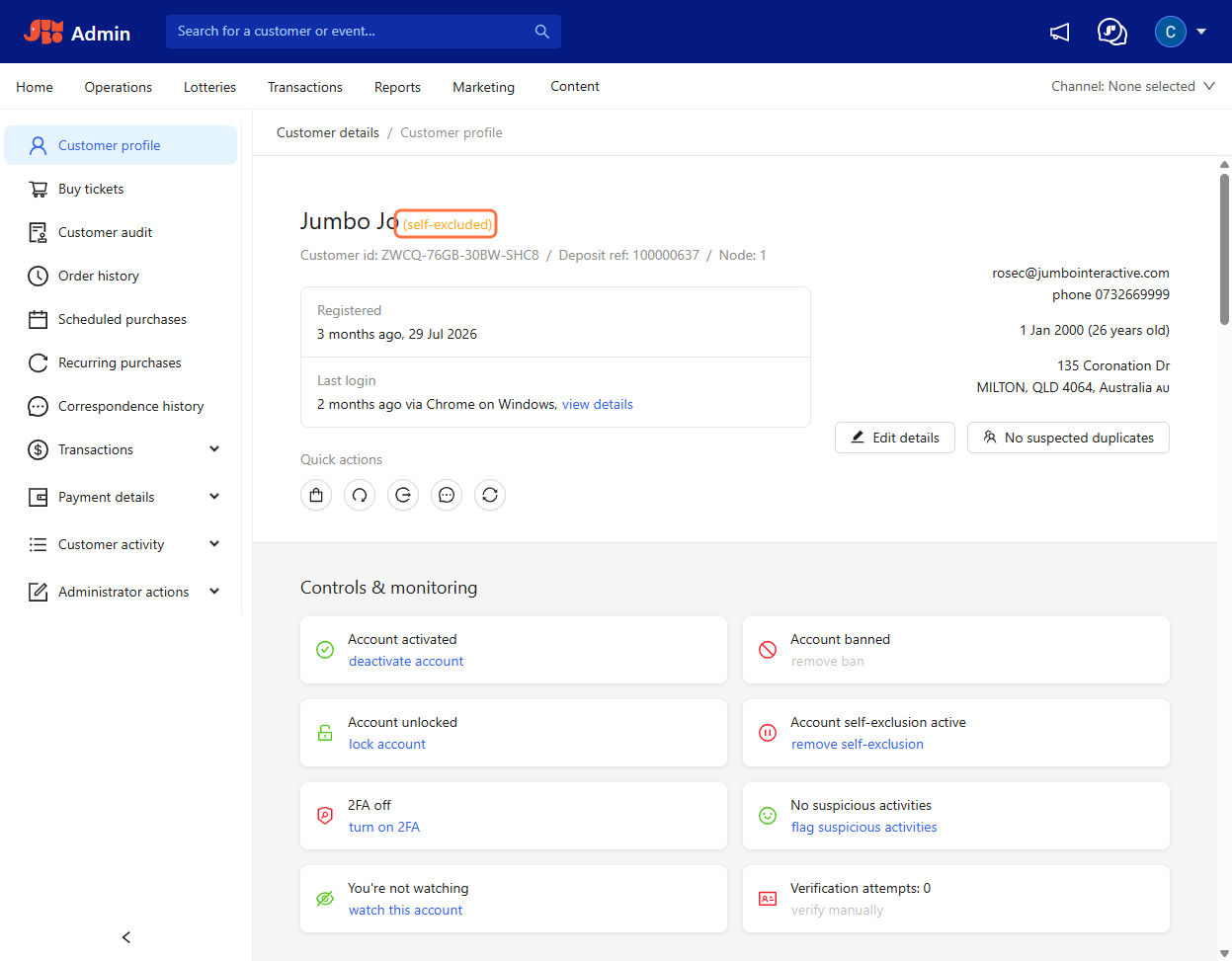
In the admin, the card shows Account self-exclusion active, a self-excluded label appears next to the supporter's name, and a Self-exclusion applied entry is added to their events.
If the supporter tries to log in, they see a general error message. It doesn't mention self-exclusion.
To remove a self-exclusion, see Lift a self-exclusion.