You can watch a customer account in Jumbo Admin and get an email each time they trigger an event you've selected, such as a sign-in, deposit or withdrawal request. This article covers how to watch a customer, change or stop a watch, and see who you're watching.
Before you start
- You need access to Jumbo Admin with permission to view customer profiles.
- Watch list emails are sent to the email address on your Admin login, so make sure it's an inbox you check.
Watch a customer
- Search for the customer using the search bar at the top of Jumbo Admin, then open their profile.
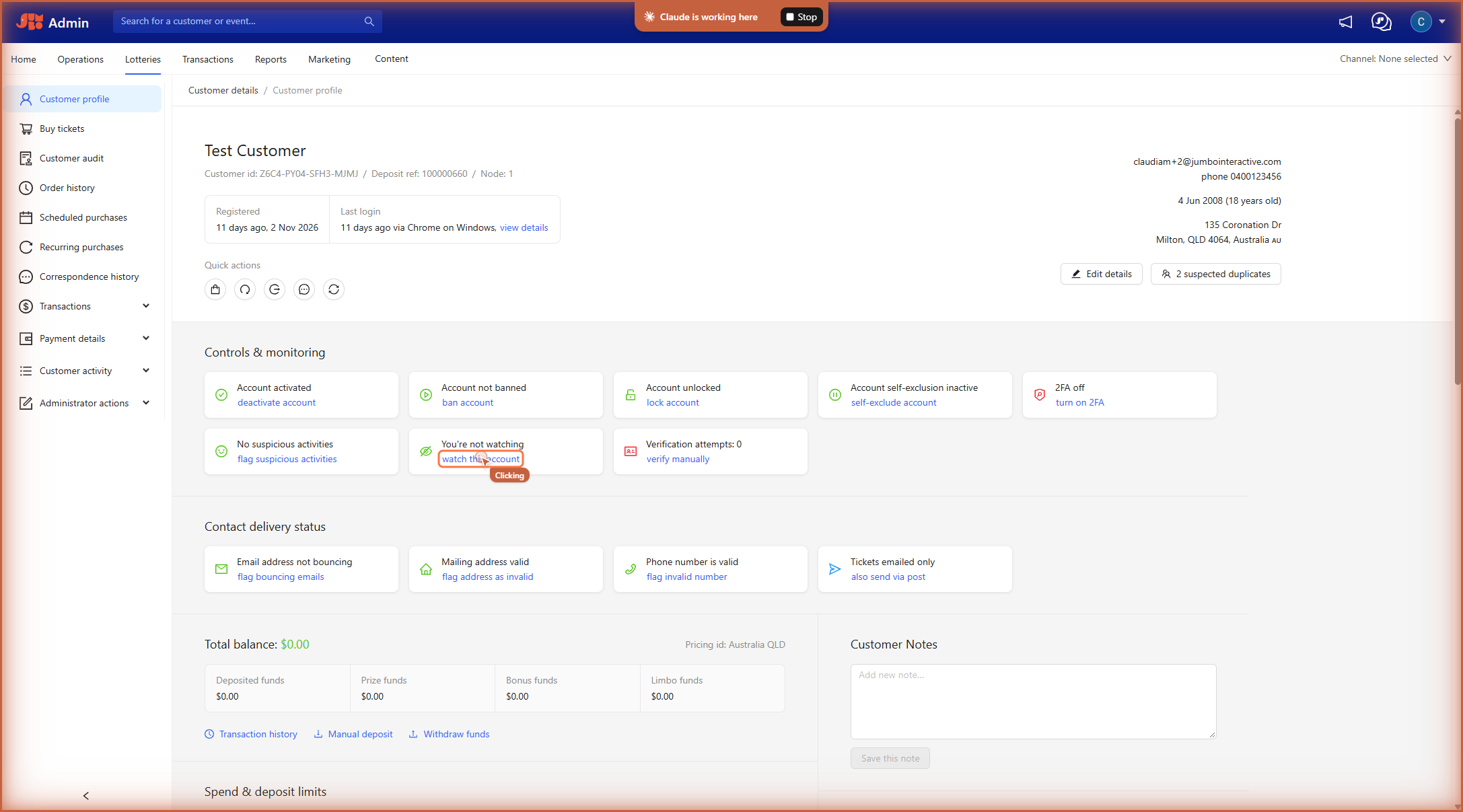
- Under Controls & monitoring, find the You're not watching tile and click watch this account.
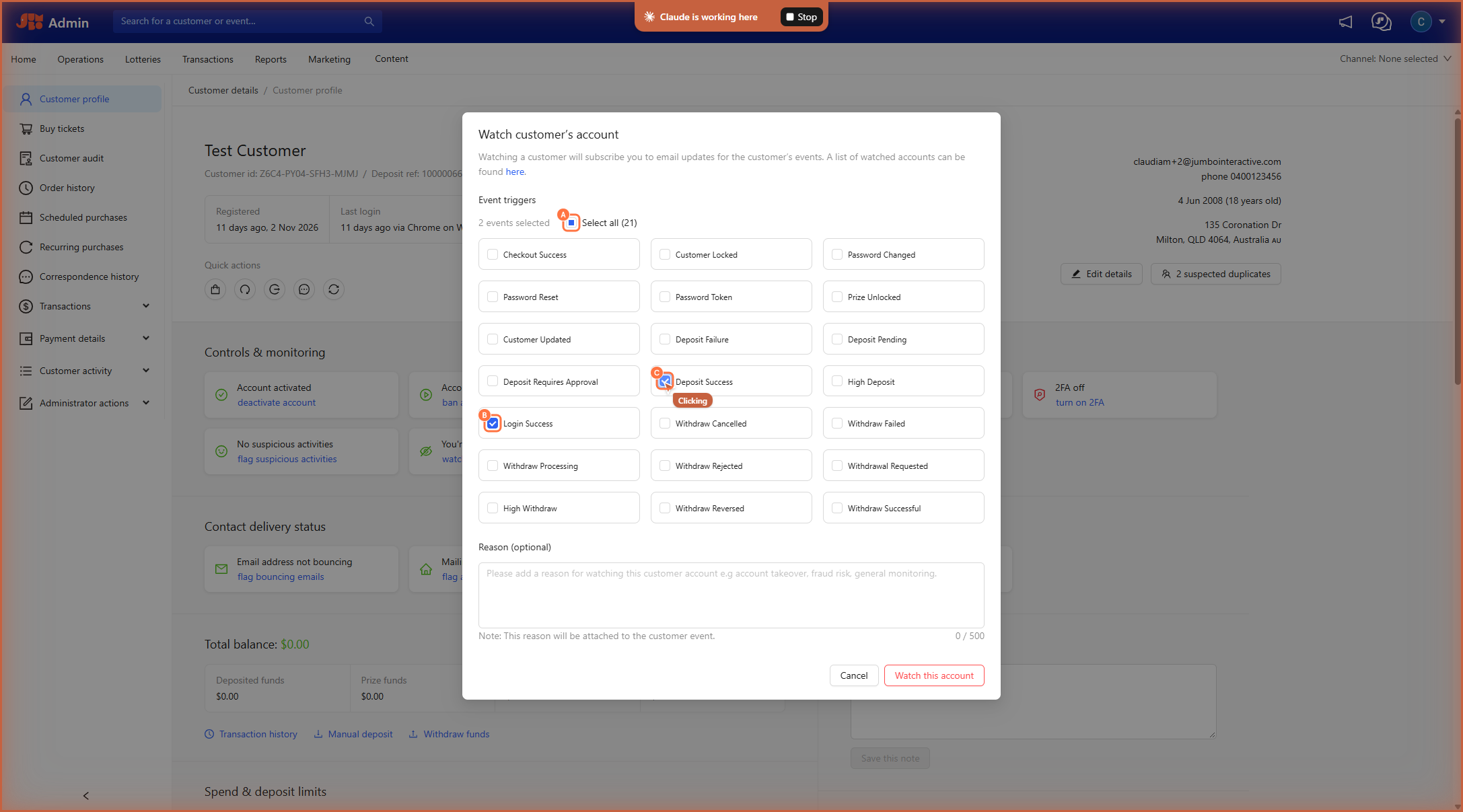
3. Choose which events you want to be emailed about. All 21 are selected by default. To choose specific events, untick Select all, then tick the ones you need.
4. Add a reason if you'd like, such as general monitoring or fraud risk. It's saved to the customer's event history.
5. Click Save Changes
The tile changes to You're watching and a confirmation message appears.
Check the watch is active
Each time you watch, edit or stop watching a customer, it's recorded in their event history.
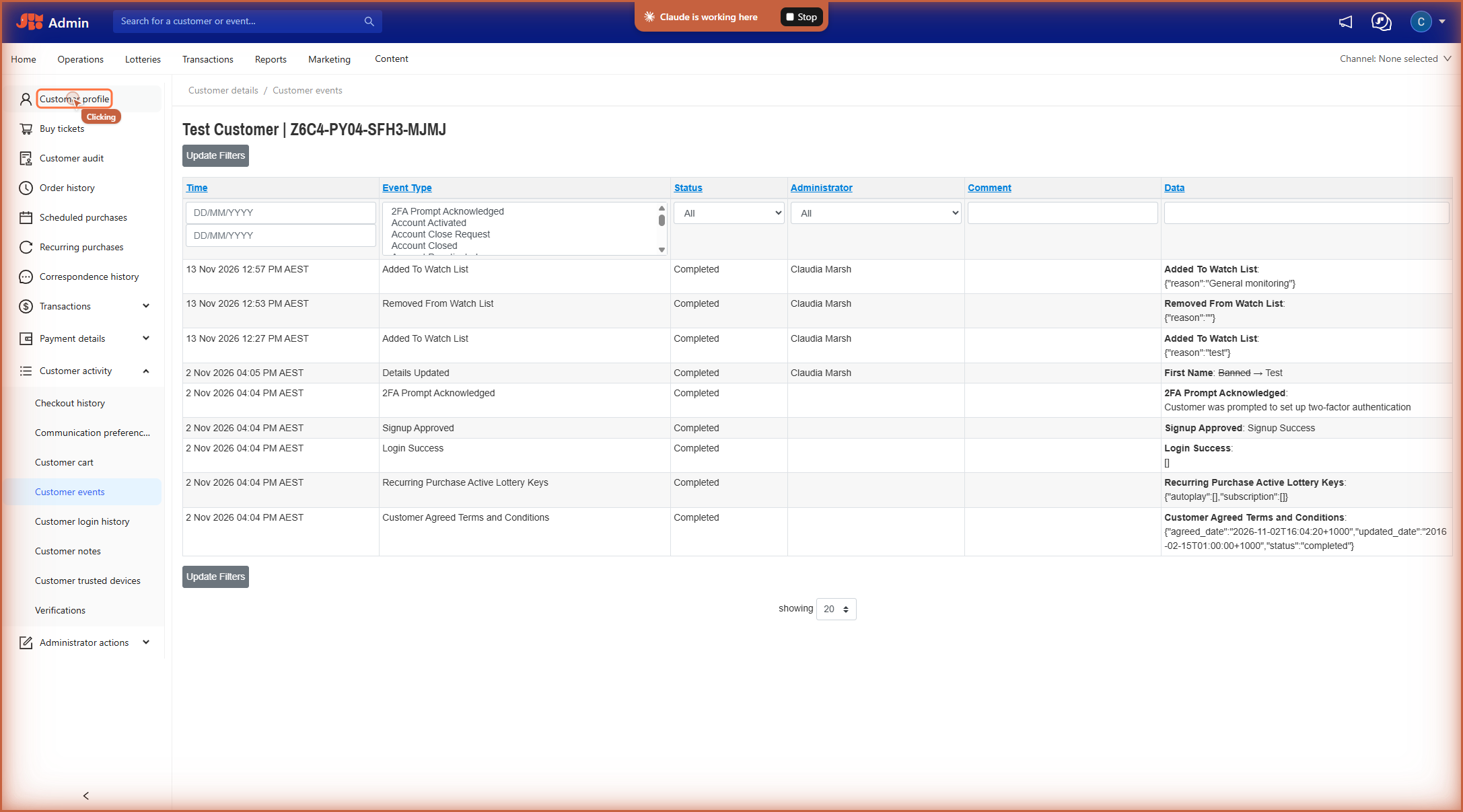
- On the customer's profile, go to Customer activity > Customer events in the left menu.
- Look for an Added To Watch List event at the top of the list. The Data column shows the reason you entered.
You'll now get an email each time the customer triggers one of your selected events. If a CC address is set up, it gets a copy too.
Change the events you're watching
- Open the customer's profile.
- On the You're watching tile, click edit notifications.
- Tick or untick events as needed.
- Add a reason for the change if you'd like.
- Click Save changes.
A new Added To Watch List event appears in Customer events with your updated reason.
Stop watching a customer
- Open the customer's profile.
- On the You're watching tile, click stop watching account.
- Add a reason if you'd like.
- Click Stop watching this account.
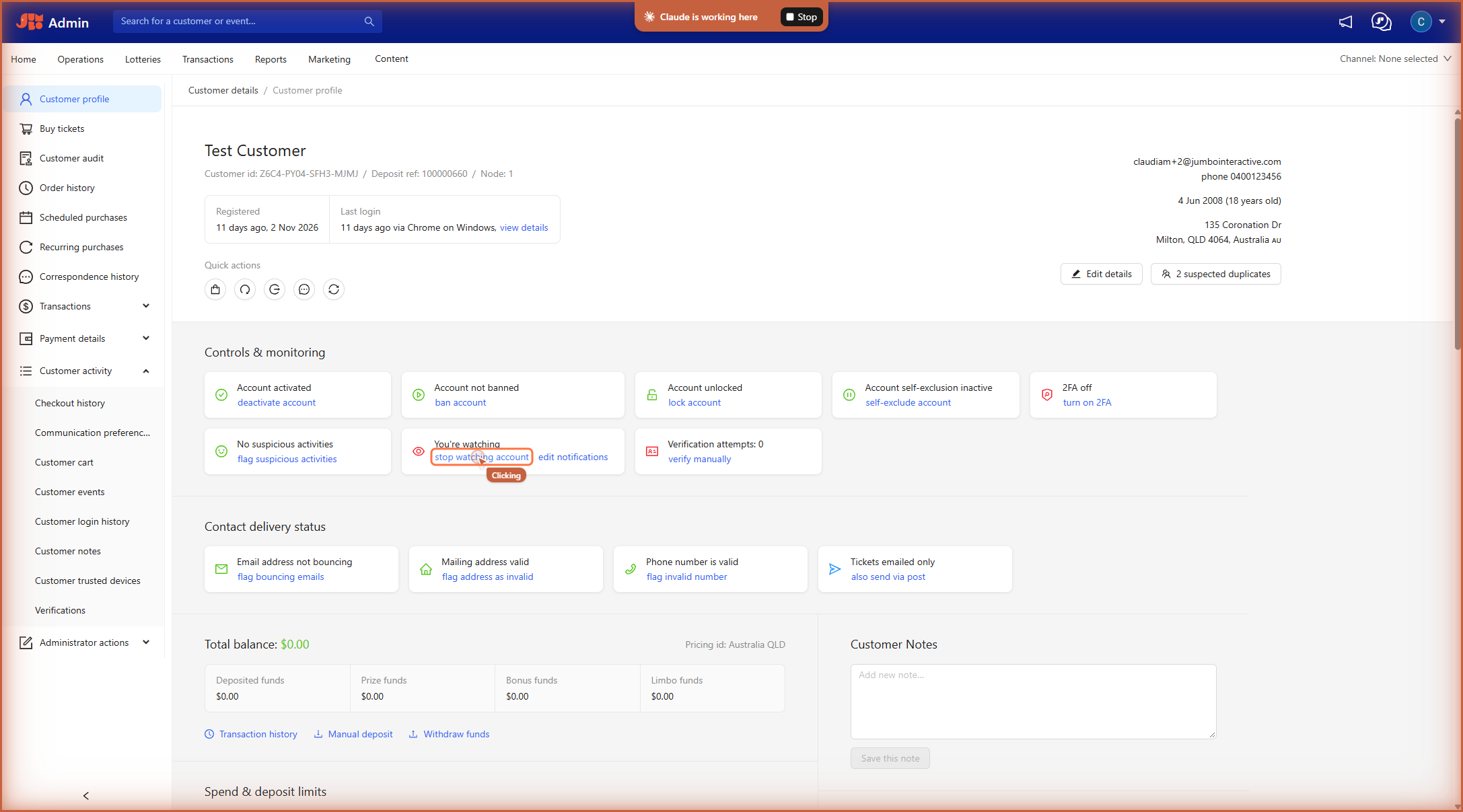
You'll no longer get emails for this customer. A Removed From Watch List event appears in Customer events.
Review your watch list
Your watch list shows all the customers you're currently watching.
- Click the drop-down arrow next to your profile icon in the top-right corner.
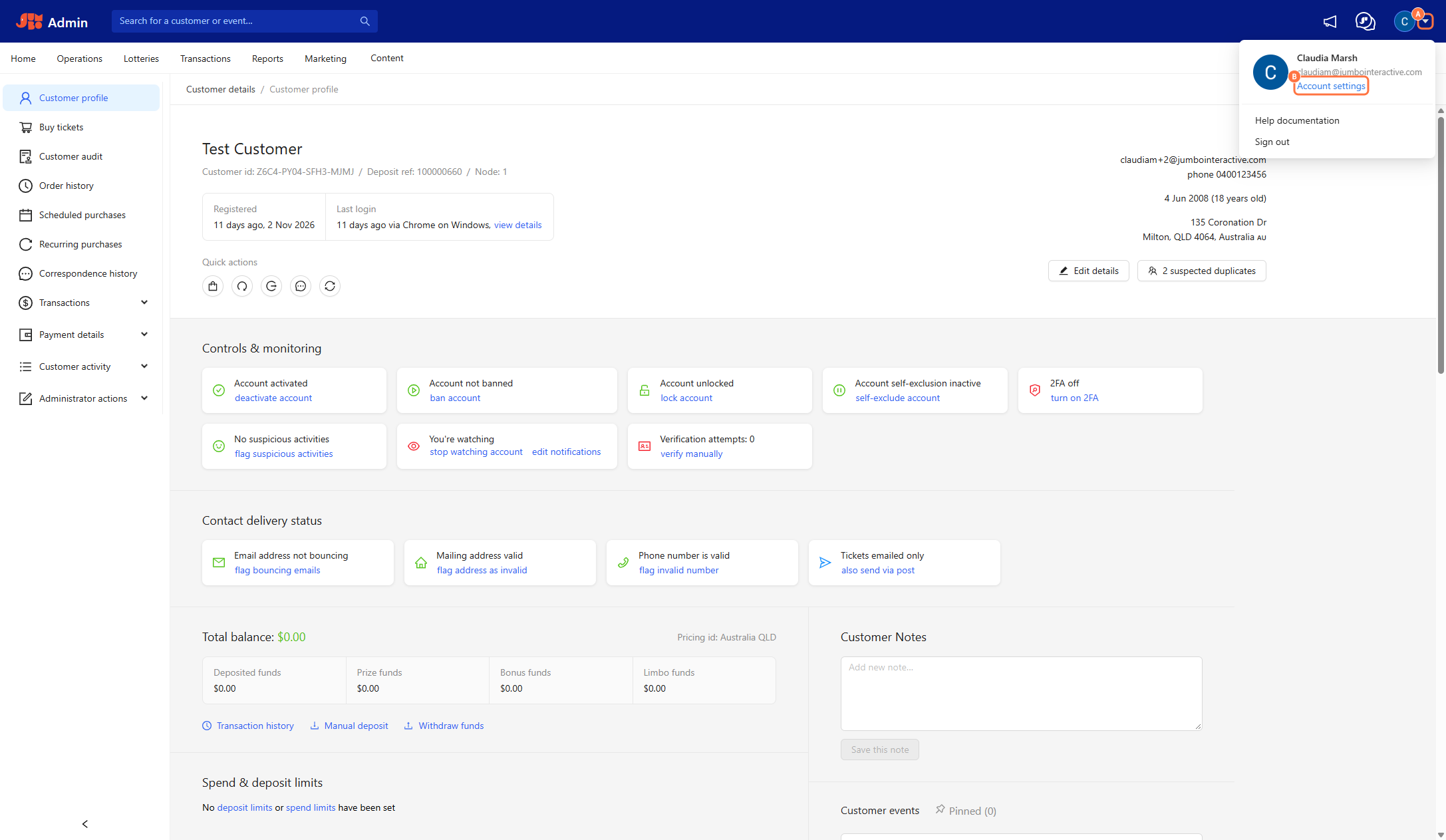
2. Click Account settings.
3. In the left menu, click Watched Customers.
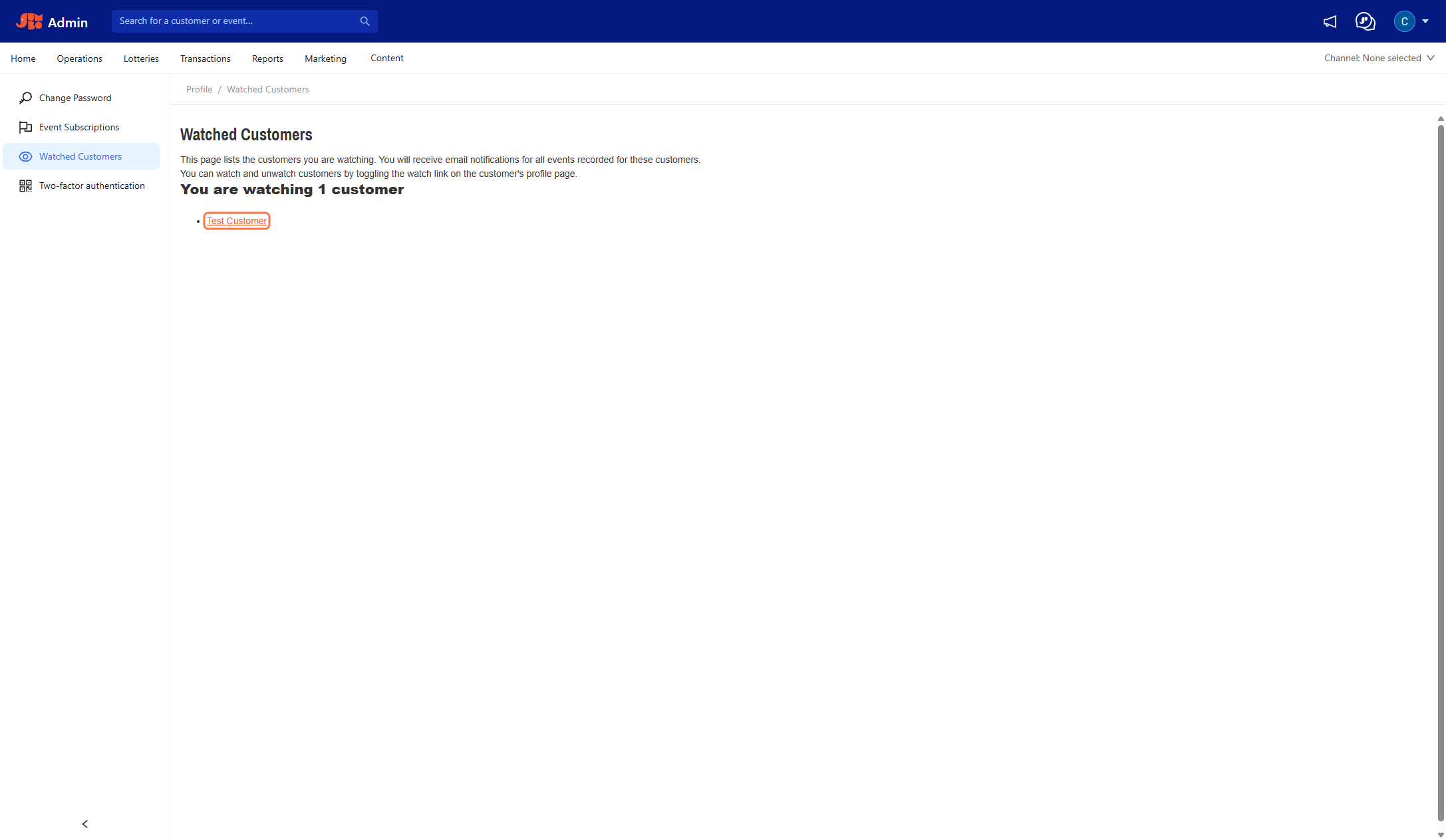
The page shows how many customers you're watching, with a link to each profile. To stop watching someone on the list, open their profile and follow the steps in Stop watching a customer.